With the rapid evolution of technology, TCL televisions now offer a multitude of features that allow you to fully enjoy your favorite channels. Users often seek the most effective methods to install and use these channels optimally.
Installing channels may seem complex at first glance, but with a few simple steps, your TCL TV will be ready to stream everything you love. Whether you are using streaming apps, set-top boxes, or antennas, there are solutions tailored to every need. Following practical tips can greatly enhance your viewing experience.
Preparing Your TCL TV for Channel Installation
To optimize the use of your TCL TV, start by ensuring a reliable internet connection. You have two options: Wi-Fi, which offers more flexibility with fewer cumbersome cables, or Ethernet, which guarantees a more stable and often faster connection.
Setting Up Your Network
- Access the settings of your TCL TV from the main menu.
- Select ‘Network’ then ‘Internet Connection’.
- Choose between Wi-Fi and Ethernet according to your preferences and your home setup.
- Enter the required information to connect your TV to your network.
Installing Necessary Apps
Your TCL Smart TV, whether it is an Android or Roku model, allows you to access a wide range of apps via the Google Play Store or the Channel Store. Download the essential apps to watch your favorite channels. If you are using IPTV services, apps like SS IPTV or GSE Smart IPTV are recommended for efficient channel management.
Setting Up and Using IPTV TCL
The IPTV TCL services allow you to stream TV programs via the Internet. To set up these services on your TCL TV, follow these steps:
- Download an IPTV app from the Google Play Store or the Channel Store.
- Open the app and follow the instructions to add your channel lists.
- Use your remote to navigate between channels and adjust the settings according to your preferences.
Make sure your TCL TV is well configured to make the most of its features, and enjoy an enriched and personalized viewing experience. 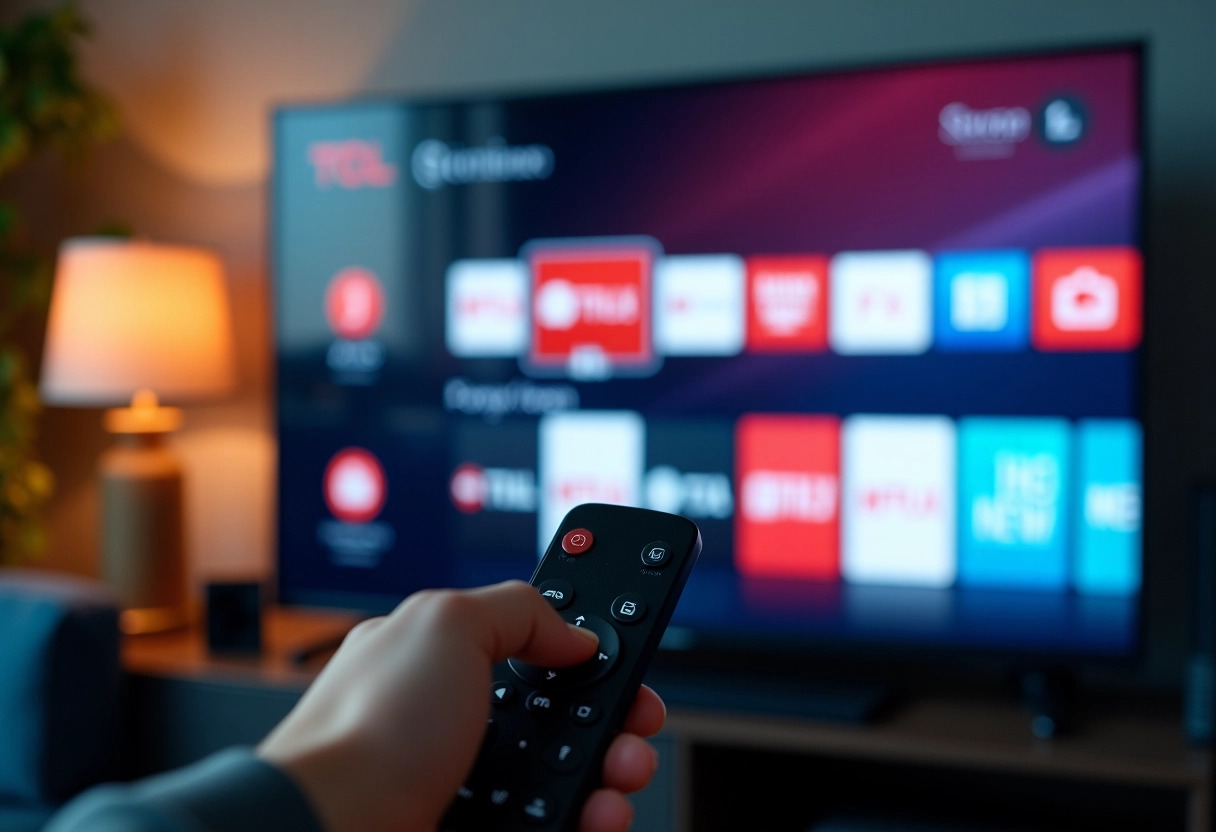
Setting Up and Using Your Favorite Channels on Your TCL TV
To fully enjoy your TCL TV, follow these steps to set up and use your favorite channels. Start by downloading the necessary apps from the Google Play Store or the Channel Store depending on your TV model (Android or Roku).
Setting Up IPTV Apps
The IPTV services allow you to stream TV programs via the Internet. Here’s how to set up apps like SS IPTV or GSE Smart IPTV:
- Download the app from the Google Play Store or the Channel Store.
- Open the app and follow the instructions to add your channel lists.
- Use your remote to navigate between channels and adjust the settings according to your preferences.
Using Streaming Apps
Your TCL TV is compatible with popular streaming apps like Netflix, YouTube, and Discovery Go. To install them:
- Access the Google Play Store or Channel Store.
- Search for the desired app and download it.
- Log in with your credentials to access your content.
Optimizing User Experience
For an optimal viewing experience, use integrated technologies like Dolby Vision for exceptional picture quality. Also, enable Google Assistant to control your IPTV channels by voice, simplifying navigation and selection of your favorite programs.
Setting up and using your favorite channels on your TCL TV thus becomes an easy task, enriching your viewing experience and allowing you to fully enjoy the capabilities of your device.